Templates
How to use Templates in Changelog
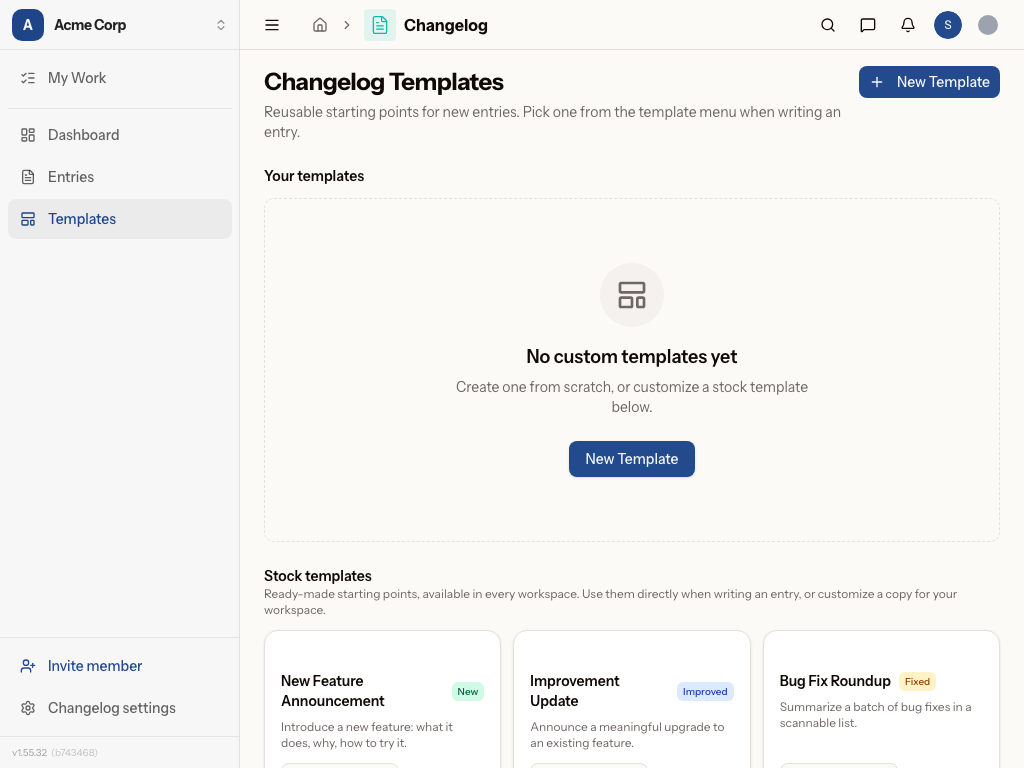
Changelog Templates
Templates let you standardize how your team publishes changelog entries. Instead of writing every announcement from scratch, you can save reusable formats for common update types — like maintenance notices, feature releases, or policy changes — complete with pre-filled titles, content structure, and links. This keeps your changelog consistent and saves time on repetitive entries.
How to create and manage a template
- Go to Changelog > Templates in your workspace.
- Click New Template to open the template editor.
- Give your template a Name and optional Description so your team knows when to use it.
- Choose a Category (e.g. New, Improvement, Fix) — this determines how the entry is labeled and colored once published.
- Fill in the Title Template and Content Template with your standard wording, leaving placeholders where specific details will go.
- Optionally add a Link Title and Link URL if the template should always point readers to a related resource (like a status page or docs article).
- Click Save to add it to your workspace templates list.
- To reuse a template later, select it when creating a new changelog entry — its fields will pre-fill automatically.
- To make changes, click the Edit (pencil) icon on any template card, update the fields, and save again.
- Use the Duplicate option to quickly create a variation of an existing template without starting over.
- To remove a template you no longer need, click Delete and confirm in the dialog.
In practice
An IT service desk lead at an enterprise creates a "Planned Maintenance" template with a standard title format, a content block outlining affected systems and downtime windows, and a link to the internal status page. Every time maintenance is scheduled, they select the template, swap in the date and system name, and publish — cutting announcement time from 15 minutes to under 2.
A product manager at a software company sets up separate templates for "New Feature," "Improvement," and "Bug Fix" release notes, each with consistent tone and structure. This keeps customer-facing changelog entries polished and on-brand, even when different team members are the ones writing them.
Tips
- Use placeholders (like
[Date]or[System Name]) in your templates so it's obvious what needs to be filled in before publishing. - Create one template per changelog category to keep formatting consistent across entry types.
- Duplicate a close-match template instead of building from scratch when you need a slight variation.
Was this page helpful?