Quick Setup (Web-Based)
Connect your AI tool to Metadot in seconds — no tokens or environment variables needed
This is the fastest way to connect your AI tool to Metadot. Just add a URL — your browser handles authentication via OAuth 2.1 with PKCE. No API keys, no database credentials, no local server required.
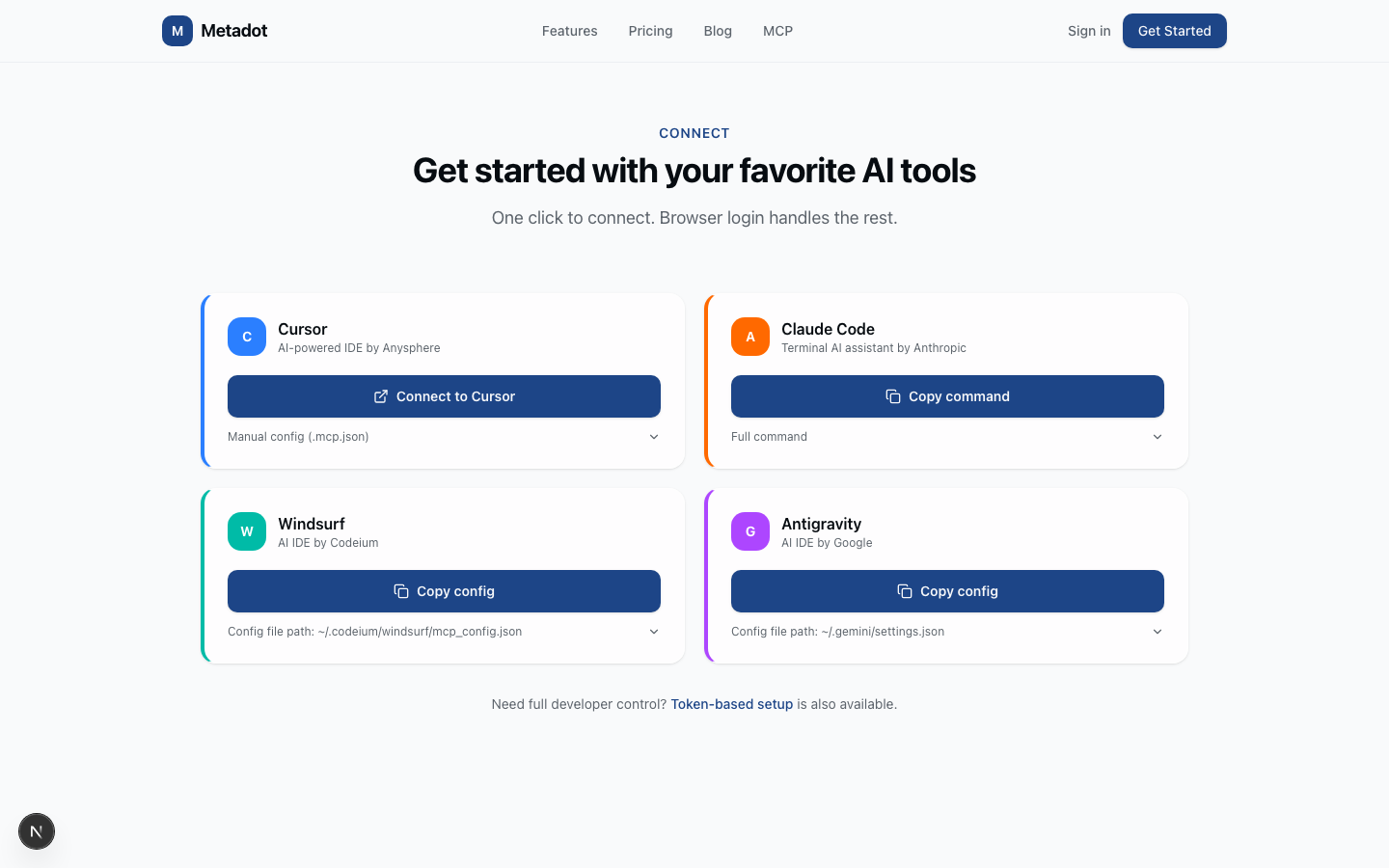
Connecting from an IDE? See the Developer Setup (IDE) guide for Cursor, Claude Code, Windsurf, and Antigravity instructions.
How It Works
- Copy the Metadot MCP URL:
https://metadot.net/api/mcp - Paste it into your AI tool's settings
- Your browser opens to a consent page where you sign in with your Metadot account
- A 24-hour access token is issued automatically — renewals happen in the background
For Everyone (No Coding Required)
These tools work for anyone with a Metadot account. No technical skills needed.
MCP Server URL: https://metadot.net/api/mcp
Claude Desktop
- Open Claude Desktop
- Go to Settings (gear icon) > MCP Servers > Add
- Paste the URL:
https://metadot.net/api/mcp - Click Save
- Your browser opens for Metadot login. Authorize and you're done.
ChatGPT
- Open ChatGPT Desktop app
- Go to Settings > MCP
- Click Add Server
- Paste the URL:
https://metadot.net/api/mcp - Click Save
- Your browser opens for Metadot login. Authorize and you're done.
Claude.ai (Web)
- Go to claude.ai in your browser
- Click your profile icon > Settings
- Go to Integrations tab
- Click Add MCP Server
- Paste the URL:
https://metadot.net/api/mcp - Click Save. Login is handled automatically.
For Developers
Cursor
Add to your project's .mcp.json:
{
  "mcpServers": {
    "metadot": {
      "url": "https://metadot.net/api/mcp"
    }
  }
}
When you first use the MCP server, your browser will open for you to log in to your Metadot account. No further setup needed.
Claude Code
Run in your project root:
claude mcp add --transport http metadot https://metadot.net/api/mcpClaude Code will open your browser for authentication when you first connect.
Windsurf
Add to ~/.codeium/windsurf/mcp_config.json:
{
  "mcpServers": {
    "metadot": {
      "command": "npx",
      "args": ["mcp-remote", "https://metadot.net/api/mcp"]
    }
  }
}
The mcp-remote package acts as a bridge for STDIO-only clients. Your browser opens for authentication on first use.
Antigravity
Add to ~/.gemini/antigravity/mcp_config.json:
{
  "mcpServers": {
    "metadot": {
      "command": "npx",
      "args": ["mcp-remote", "https://metadot.net/api/mcp"]
    }
  }
}
Merge into your existing config if you already have other MCP servers.
Try It Out
Once connected, ask your AI assistant:
"List my workspaces"
"Show me open tickets"
"Create a CRM contact named Jane Doe at Acme Corp"
"Search everything for 'invoice'"
Visual Setup Guide
Visit metadot.net/mcp-server for an interactive visual guide with step-by-step connection instructions for each AI tool.
Was this page helpful?