Discussions
How to use Discussions in Stackr Project
Discussions
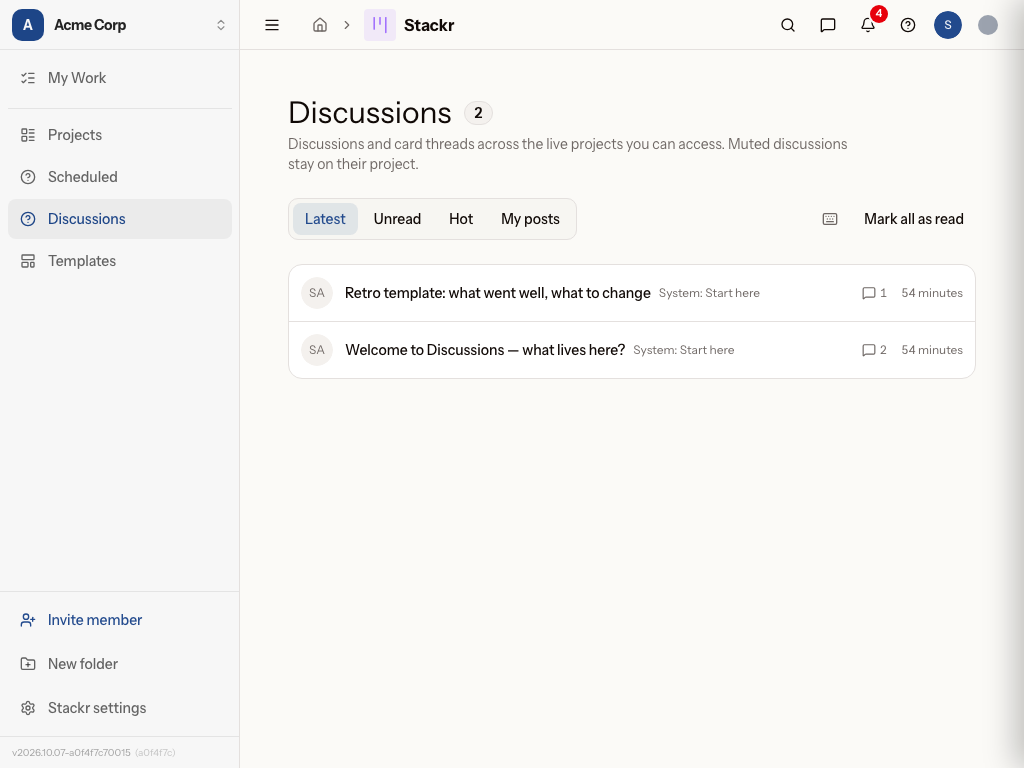
Discussions bring every conversation on your boards into one place. Instead of hunting through individual cards or topics, you get a single inbox that pulls together topic threads and card comments from every board you have access to, sorted by the latest activity, with the project shown on each row. It's the fastest way to catch up on what's changed without opening each board one by one.
How to use discussions
- Open the Discussions link from the Stackr Project navigation.
- Choose Latest, Unread, Hot, or My posts. These are the same filters available in a project’s Discussions view.
- Scan the timeline. Each row shows a topic or card thread, its project, reply count and most recent activity.
- Click a row to open its drawer without leaving the inbox. Click another row or use Previous / Next to switch conversations. Use Open card to open the full card in its project.
- Choose Load more discussions to load older conversations. Filters apply to all conversations, including those you have not loaded yet.
- Return to Discussions any time — it automatically refreshes as new replies and comments come in, so you don't need to reload the page.
Note that muted topics won't appear in your inbox, so you only see conversations you actually care about.
Reading discussions in either view
Open a project's Discussions view to browse its topics and card comment threads, or use the Discussions inbox to roll up conversations across your projects. Click a row to open its drawer. Click the same row again to close it, or another row to switch conversations.
-
Latest shows the most recent conversation activity. Pinned topics come first within a project; the cross-project inbox keeps chronological order.
-
Unread shows conversations you haven't opened or with new replies from others. Muted topics are excluded.
-
Hot highlights trending conversations using total likes and replies, recent likes and distinct participants over 72 hours. Older activity loses weight over time; a fresh reply or like can bring an older thread back up.
-
My posts shows conversations where you wrote the opening post or a reply, including comments on cards. Being assigned a card or mentioned in a post does not count as posting.
Choose Mark all as read to clear unread state across the current project, or across all accessible live projects from the inbox, including conversations you haven't loaded yet. Your notification preferences stay the same. This also works on archived boards.
Use J / K or ↓ / ↑ to move between rows. Press Enter to open a focused row. With the drawer open, these keys switch conversations directly; ← / → and the Previous / Next buttons work too. Shortcuts pause while you type a reply. Esc closes the drawer. Use Load more discussions to extend the list when you reach the end of the loaded conversations.
Editing a discussion you started
Use @someone to mention a person, or @all (@everyone also works) to mention
members with project access. Type # to search accessible cards by number or slug
and insert a card link; / opens formatting commands. Card comments additionally
offer @participants for the card's roster, with a (@) help button beside
Cancel. Project discussion topics and replies ignore pasted @participants
mentions. Personal notification settings still apply to mention delivery.
Open a standalone discussion, choose More actions (…), then select Edit discussion. You can update its title and opening post together, including mentions, links, formatting, and attachments. Stackr warns before discarding unsaved changes if you close the drawer or switch conversations.
Only the person who started the discussion can edit it, and they must still have editor access to the board. Discussions on archived boards are read-only. Card threads are edited from the card because their title and opening content belong to the card itself.
In practice
Priya, an IT manager is running a company-wide laptop refresh board with dozens of cards, one per employee getting a new machine. Instead of checking each card for updates, she opens Discussions each morning and scans the timeline for her laptop refresh project. She spots three cards with new comments from employees confirming their preferred pickup times and replies directly in the drawer, without digging through the full board.
Marcus, a facilities manager at a K-12 district manages recurring maintenance boards for each school building. When a custodian flags an HVAC issue in a card comment, Marcus sees it appear in his Discussions inbox that afternoon, with the correct building’s project shown on the row. He jumps straight to the thread, confirms the scope of the repair, and assigns it without leaving the conversation.
Tips
- Mute topics you no longer need to follow so your inbox stays focused on active conversations.
- Check Discussions first thing each day as a quick way to catch up across every board you're a member of.
- If a conversation seems missing, confirm you still have a grant on that board — Discussions only shows boards you currently have access to.
Filter shortcuts
Use Shift+L for Latest, Shift+U for Unread, Shift+H for Hot, and Shift+M for My posts. These shortcuts apply in the discussion feed and board Discussions view. They leave text inputs and open menus alone; a draft or reply being saved keeps its existing navigation guard.
Was this page helpful?