Scheduled
How to use Scheduled in Stackr Project
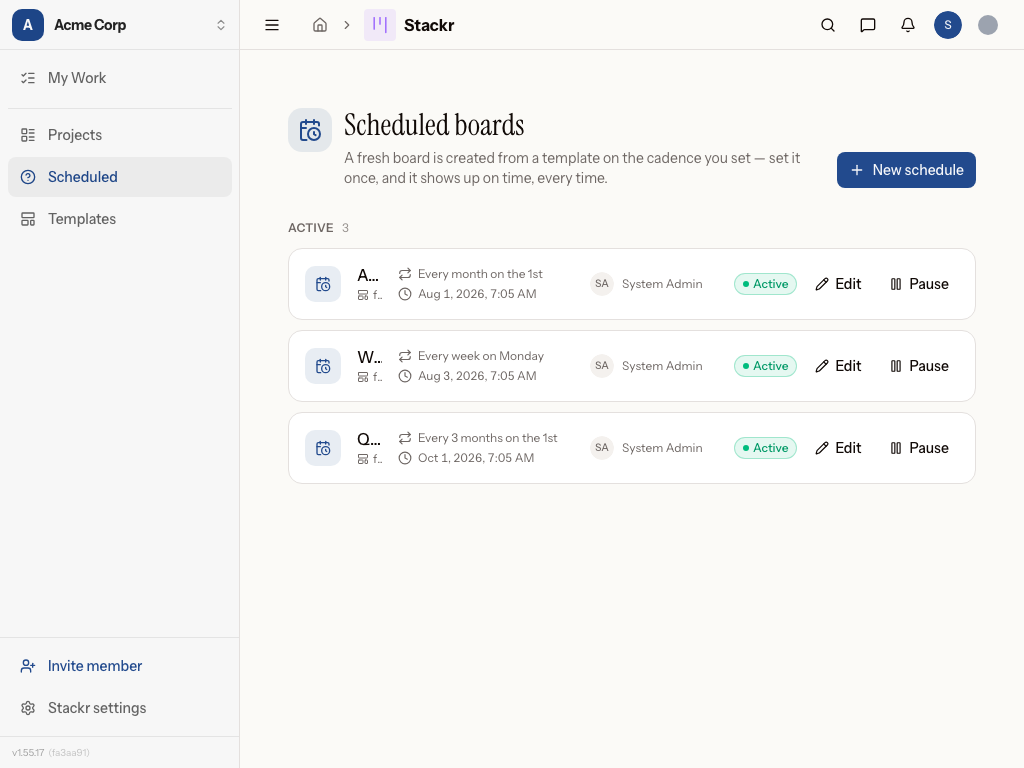
Scheduled boards
The Scheduled page lets Stackr Project create a whole new project board for you on a cadence — for recurring processes like a monthly maintenance cycle or a per-semester inspection round. Set the schedule once and Stackr Project builds the board on time, every time.
Looking to repeat a single card instead of a whole board? Card schedules live on the board that owns them — open the board and switch to its Scheduled view (see "Recurring cards live on their board" below).
How to set up a scheduled board
- Go to the Scheduled tab in Stackr Project.
- Click New board schedule.
- Choose the template you want to use as the source board.
- Decide whether to copy the template's existing cards into each new board, or start with an empty board each time.
- Set the recurrence pattern (for example, weekly, monthly, or on a custom schedule) using the recurrence picker.
- Assign a project manager for the boards this schedule creates. If the person isn't already a template manager, grant them access directly from the dialog.
- Give the schedule a name so you can identify it later, then save it.
Recurring cards live on their board
A card schedule creates a fresh copy of a single card on the board you already run — for repeating tasks like a weekly report. Because it belongs to that board, you manage it from the board itself, not this workspace-wide page:
- Open the board and select the Scheduled view from the view switcher (the calendar icon). A small dot appears on that icon when one of the board's card schedules needs attention.
- Click New card schedule and pick the card on this board to repeat. (You can also open Repeat… from any card's ⋯ menu, or set a cadence right in the new-card dialog.)
- Choose the list each copy should be created in — "the card's list" pins whichever list the card is on when you save.
- Set the recurrence, then save. Each run creates a fresh copy of the card — same description, assignee, and checklists (unchecked) — captured as of your last save, so later edits or even deleting the original card never break the schedule.
The board's Scheduled view lists each card schedule's cadence, next run, run count, and owner, split into Active and Paused. A schedule that stops because something it needs is gone (for example, the owner lost access) is flagged Needs attention with the reason, so you can fix it and resume.
Limiting how many times a schedule runs
Any repeating schedule can end after a fixed number of runs: in the Ends field, choose After a number of runs and set the count. The schedule pauses itself as "Series complete" after the final run. Choose Never for an open-ended series, or set an end date from the Custom recurrence dialog. On a card schedule, the run column shows progress toward that cap (for example, "3 / 12").
Managing board schedules
- The list shows each schedule's cadence, next run, and owner, split into Active and Paused.
- Use the pause/resume button to stop or restart a schedule without losing its settings.
- Use the pencil to edit a schedule, and the trash icon to delete one — boards it already created stay where they are.
- Archiving a board pauses its schedules (resume them after restoring the board); deleting a board removes its schedules along with it.
In practice
Priya, an IT manager at a mid-size company runs a recurring laptop refresh and onboarding/offboarding process. She builds a template board with columns for procurement, imaging, and deployment, then sets up a monthly schedule that copies the template's checklist cards into a new board on the first of each month. She assigns herself as project manager, so every new cycle lands in her queue automatically without her having to rebuild the board from scratch.
Marcus, a facilities manager at a K-12 school district oversees recurring maintenance across several buildings. He creates a template board per building with routine inspection and repair tasks, then schedules it to regenerate every semester. He assigns each building's site lead as project manager, so maintenance boards appear right on schedule with the correct owner already in place.
Dana, an operations lead, submits a weekly ops report every Friday. On her board she opens the report card's ⋯ menu, chooses Repeat…, and sets it to weekly with her prep checklist attached. A fresh, unchecked copy shows up in her "To do" list each week — and when the quarter's 13 reports are done, she caps the schedule at 13 runs so it wraps itself up. She keeps an eye on the board's Scheduled view to confirm every copy landed.
Tips
- Keep your source templates clean and up to date — every scheduled board inherits directly from the template, so outdated cards will keep reappearing.
- A card schedule snapshots the card as of your last save — reopen the schedule and save again to pick up changes you've made to the card since.
- Use pause instead of delete when a process is on hold; you'll keep your recurrence settings for when you're ready to resume.
- Watch the Scheduled view's icon on a board — a dot means one of its card schedules needs attention and stopped running.
Was this page helpful?