Overview
Connect AI coding agents to Metadot via the Model Context Protocol
The Metadot MCP Server lets you connect any AI tool to your Metadot workspace using the Model Context Protocol. Your AI assistant can search, create, and manage data across all Metadot modules — whether you use Claude Desktop, ChatGPT, or a developer IDE.
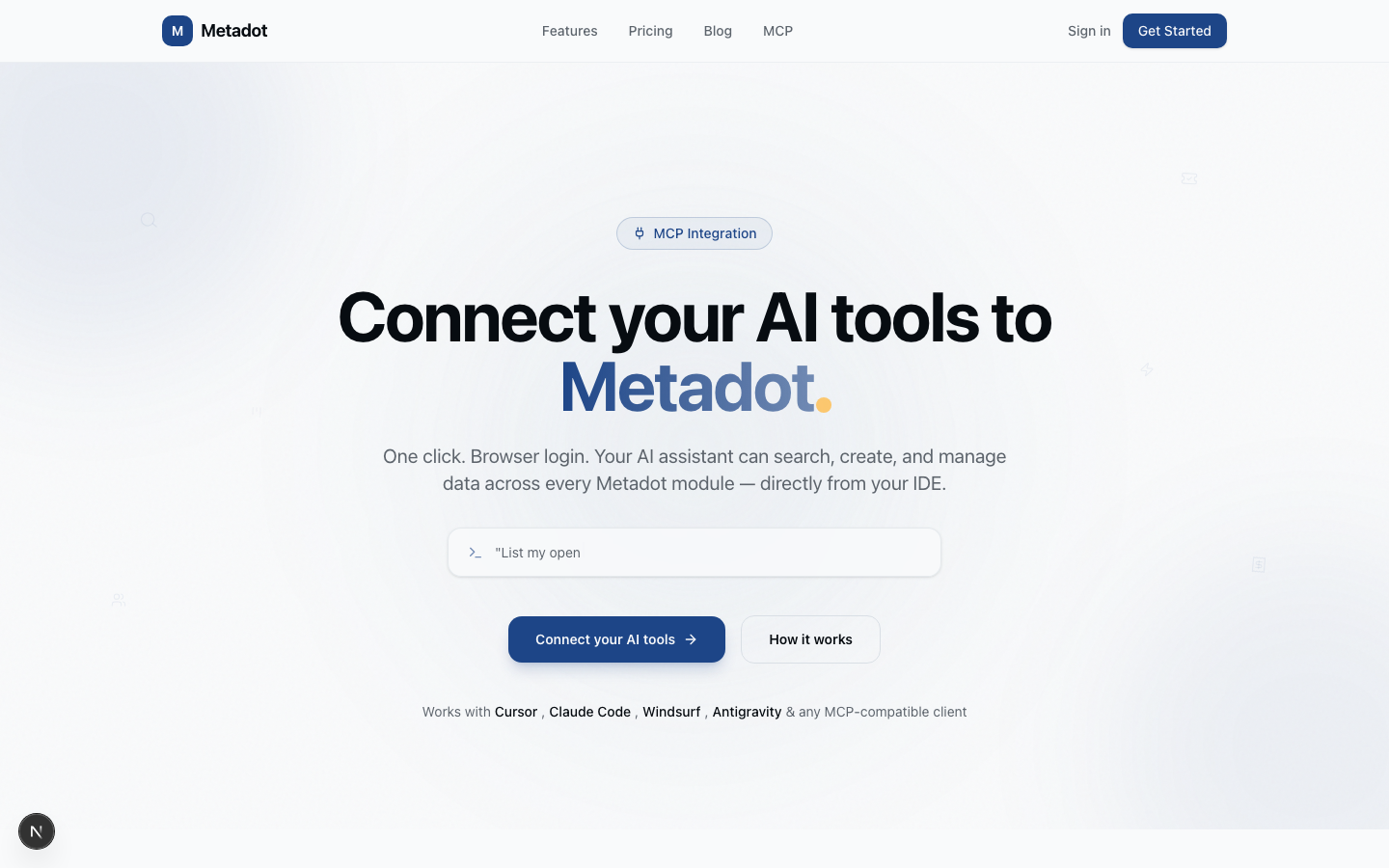
Visual setup guide: Visit metadot.net/mcp-server for an interactive landing page with step-by-step connection instructions for every AI tool.
Two Ways to Connect
| Method | Best for | What you need |
|---|---|---|
| Quick Setup (Web-Based) | Claude Desktop, ChatGPT, Claude.ai | Just a URL — your browser handles login |
| Developer Setup (IDE) | Cursor, Claude Code, Windsurf, Antigravity, other | Just a URL in your IDE config — OAuth on first use |
Supported AI Tools
For Everyone (No Coding Required)
- Claude Desktop — paste the URL in Settings > MCP Servers
- ChatGPT — paste the URL in Settings > MCP
- Claude.ai — paste the URL in Settings > Integrations
For Developers
- Cursor — one-click install via deeplink or single URL config
- Claude Code — terminal command
- Windsurf — JSON config (web-based via
mcp-remotebridge) - Antigravity — JSON config (web-based via
mcp-remotebridge) - Any other MCP-compatible client
What You Can Do
Once connected, your AI agent can interact with all enabled apps in your workspace:
| Module | Examples |
|---|---|
| CRM | Search contacts, create leads, log activities, manage pipelines |
| Tickets | List open tickets, create tickets, add replies |
| Stackr | Browse boards, create cards, move cards between lists |
| Assets | Search assets, create new assets, track checkouts |
| BookMe | List calendars, view bookings, create or cancel bookings |
| InvoiceMe | List invoices, create drafts, send and mark as paid |
| Knowledge | Search articles, create and update articles |
| Inventory | Search items, record stock transactions |
| Suppliers | Search and manage supplier records |
| Changelog | Search entries, create new changelog entries |
| Workflows | List automations, view execution history |
| Polls | List polls, view results, create new polls |
| Forms | List forms, view form details and submissions |
| Reports | Browse reports, resolve insights, run report actions |
| SOPs | Search procedures, read versions, publish and archive SOPs |
Quick Start
"List my workspaces"
"Show me open tickets in workspace <id>"
"Create a CRM contact named Jane Doe at Acme Corp"
"Search everything for 'invoice'"
How It Works
The MCP server connects your AI agent directly to the Metadot platform:
- Authenticate — sign in via your browser using OAuth 2.1 with PKCE (24-hour access token, silent refresh)
- Discover — the server detects which apps are enabled in your workspace(s)
- Expose — only tools for enabled apps are registered (disabled apps stay hidden)
- Execute — every tool call passes through three RBAC layers before reaching the database
Read the Quick Setup (Web-Based) guide for consumer AI tools, or the Developer Setup for connecting your IDE.
Was this page helpful?