Tasks Overview
How to use Tasks Overview in Projects
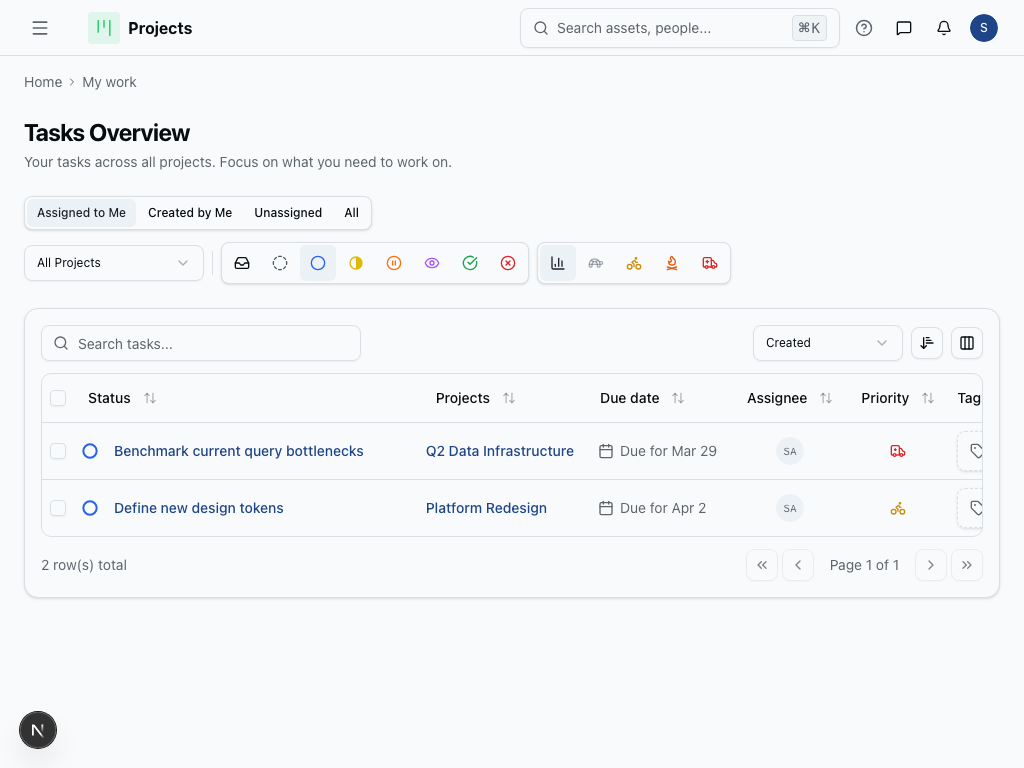
The Tasks Overview feature gives you a comprehensive view of all tasks within your project, helping you monitor progress, identify bottlenecks, and keep your team aligned. This centralized dashboard is essential for maintaining project momentum and ensuring nothing falls through the cracks.
How to Use Tasks Overview
- Navigate to your project and select the Tasks Overview tab from the main menu
- Review the task summary cards at the top showing total tasks, completed tasks, and overdue items
- Use the filter options to view tasks by status (To Do, In Progress, Completed), assignee, or due date
- Click on any task title to view detailed information and make updates
- Sort tasks by priority, due date, or assignee using the column headers
- Track overall project progress using the visual progress bar
- Export your task data using the Export button if you need to share updates with stakeholders
Tips
Use filters strategically to focus on what matters most right now. Filter by "overdue" tasks first thing Monday morning, or view tasks assigned to specific team members during one-on-ones.
Check the overview regularly to spot patterns. If you consistently see tasks piling up with certain assignees, it might indicate a capacity issue that needs addressing.
Leverage the progress visualization during team meetings to celebrate wins and identify areas where the project might be falling behind schedule.
Was this page helpful?